How to Use Amazing Invoice
Follow this visual guide to create professional invoices in minutes. No account needed — everything happens right on the homepage.
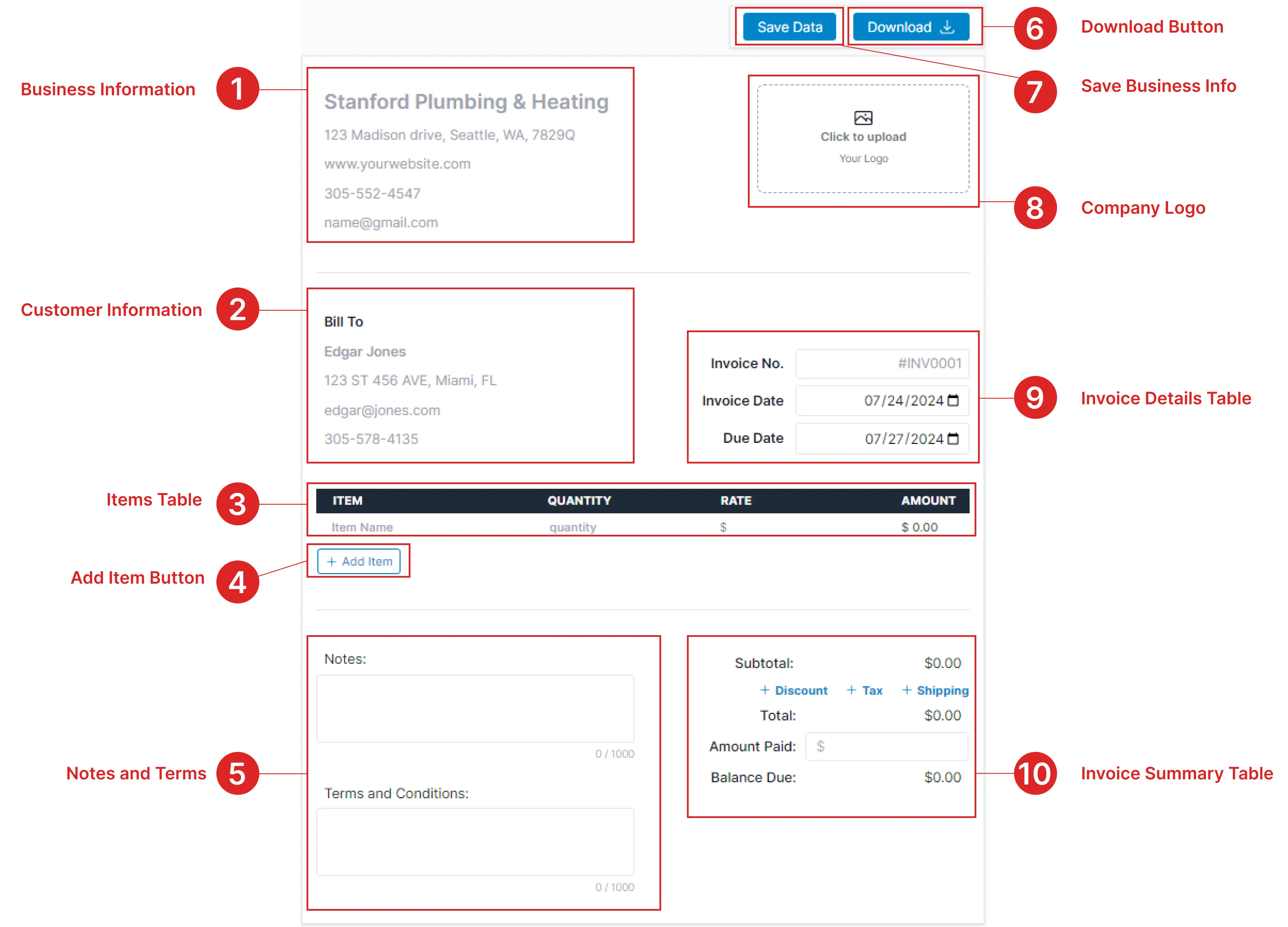
Each Section Explained
Business Information
Enter your company name, address, phone number, and email. Click "Save Data" in the toolbar to save your details so they auto-fill on your next visit.
Customer Information
Fill in your client’s name, address, email, and phone number in the "Bill To" section. This is who the invoice is addressed to.
Items Table
Add the products or services you're billing for. Enter the item name, quantity, and rate — the amount calculates automatically. Hover over a row and click the "x" to remove it.
Add Item Button
Click "+ Add Item" to add more line items to your invoice. Each new row appears at the bottom of the items table.
Notes & Terms
Add payment instructions, thank-you messages, or terms and conditions. If left blank, these sections won’t appear on the final PDF.
Download Button
When your invoice is complete, click the Download button in the toolbar to generate and save a professional PDF instantly.
Save Business Info
Click "Save Data" to store your business information in your browser. Next time you visit, your details will be pre-filled automatically.
Company Logo
Click the logo area to upload your company logo. It will appear at the top-right of your invoice for a professional, branded look.
Invoice Details
Set the invoice number, invoice date, and due date. Use these fields to keep your invoices organized and set clear payment deadlines.
Invoice Summary
View the subtotal and total. You can optionally add discount, tax, and shipping. The balance due updates automatically based on the amount paid.
Tips & Tricks
Get the most out of Amazing Invoice with these handy tips.
Use the Example Button
Click "Example" in the toolbar to load a sample invoice and see how everything works before creating your own.
Change Currency
Use the currency picker in the toolbar to switch between USD, EUR, GBP, and many other currencies.
Customize Colors
Use the color picker in the toolbar to change the accent color of your invoice to match your brand.
Leave Fields Blank
Any optional fields you leave empty (notes, terms, discount, tax, shipping) won’t appear on the final PDF, keeping it clean.
Ready to Create Your Invoice?
Head to the homepage and start invoicing in seconds.
Create Invoice